3D Printing 04/04/2026 Nichita Roilean, Founder 5 min read
3D Printing File Formats: STL vs 3MF vs OBJ vs STEP
There are four main 3D printing file formats: STL (most common, but no colors), 3MF (modern standard with color and material support), OBJ (with textures), and STEP (precise CAD geometry). This guide explains when to use each format.
Need a custom 3D print?
Upload your model — get an instant price. Dispatched in 48h, delivered across the EU.
There are four main 3D printing file formats: STL (most common), 3MF (modern standard with colors and materials), OBJ (with textures), and STEP (precise CAD geometry). Choosing the right format affects quality, colors, and processing speed.
Selecting the correct file format is one of the first steps in preparing a 3D print. Each format has its advantages, limitations, and typical use cases. This guide will help you decide which format to use for your specific project.
What is STL and Why is it the Most Common Format?
STL (Standard Tessellation Language / Standard Triangle Language) is the oldest and still the most widely used format for 3D printing. It was created in 1987 by 3D Systems.
How STL works: STL describes the surface of a 3D model as a mesh of triangles. Each triangle is defined by three vertices and a normal (surface direction).
STL advantages:
- Supported by virtually every slicer and 3D printing software
- Small file size for simple models
- Easy exchange between software applications
STL disadvantages:
- Contains no information about colors, materials, or textures
- Only one object per file
- Curved surfaces are approximated by triangles (quality loss at low mesh density)
- Does not contain units (mm, inch) — scale confusion can occur
When to use STL: For single-color functional parts, prototypes, or models where only geometry matters.
What is 3MF and Why is it Better Than STL?
3MF (3D Manufacturing Format) is a modern open standard developed by the 3MF Consortium (Microsoft, HP, Autodesk, Ultimaker, and others) in 2015.
3MF advantages over STL:
- Accurate geometry (no rounding loss)
- Supports colors, materials, and textures directly in the file
- Allows multiple objects and components in a single file
- Contains unit, scale, and orientation information
- Metadata (author, description, thumbnail)
- Support for multicolor printing (multi-material)
For multicolor 3D printing, 3MF is essential. At Niro3D, we accept 3MF files with defined colors for multicolor printing on our Bambu Lab X1C printer (AMS system).
When to use 3MF:
- Multicolor or multi-material prints
- Complex assemblies of multiple parts
- Projects with precise geometric requirements
What is OBJ and When Should You Use It?
OBJ (Wavefront Object) is a format originally developed for 3D graphics in 1986. It supports textures (UV mapping) and is widely used in animation and the gaming industry.
OBJ advantages:
- Supports textures and UV mapping (colors from an image)
- Good support in graphics applications (Blender, Maya, Cinema 4D)
OBJ disadvantages:
- Textures are in a separate file (MTL + image files) — easy to forget to include when exporting
- Large file sizes for complex models
- Slicers generally do not support textures — for printing, OBJ behaves similarly to STL
When to use OBJ: For models with textures that you export from graphics software and want to preserve the visual appearance for rendering. For actual printing, 3MF or STL is more appropriate.
What is STEP and Who is it For?
STEP (Standard for the Exchange of Product model data, ISO 10303) is a standard CAD exchange format for precise geometry. It is primarily used in engineering and industrial design.
STEP advantages:
- Precise parametric geometry (B-rep) without quality loss
- Preserves design intent (axes, surfaces, relationships)
- Ideal for export from CAD programs (Fusion 360, SolidWorks, CATIA)
STEP disadvantages:
- Must be converted to a mesh (STL/3MF) for 3D printing — this step can introduce errors
- Not all slicers directly support STEP (PrusaSlicer and Bambu Studio do)
When to use STEP: For engineering parts designed in CAD software where precise geometry is required. At Niro3D, we accept STEP files and automatically convert them for printing.
File Format Comparison Table
| Feature | STL | 3MF | OBJ | STEP |
|---|---|---|---|---|
| Colors/materials | No | Yes | Textures | No |
| Multiple objects | No | Yes | Yes | Yes |
| Precise geometry | No (mesh) | Improved mesh | No (mesh) | Yes (B-rep) |
| Units in file | No | Yes | No | Yes |
| File size | Small | Small–Medium | Medium | Small |
| Slicer support | Excellent | Excellent | Good | Limited |
| For multicolor printing | No | Yes | No | No |
| Recommended for printing | Single-color | Multicolor, assemblies | Graphic projects | Engineering parts |
What File Formats Does Niro3D Accept?
At Niro3D, we accept the following file formats:
- STL — standard choice for single-color parts
- 3MF — recommended for multicolor printing and complex assemblies
- OBJ — accepted; colors from textures are not supported for printing
- STEP / STP — accepted; automatic conversion before printing
We recommend exporting in 3MF format whenever you are printing in multiple colors or have multiple components in a single print. Our online price calculator will instantly process your file and display a 3D preview.
How to Export to the Right Format
From Fusion 360
- STL: File → Export → STL
- STEP: File → Export → STEP
- 3MF: via Make → 3D Print → Send to Slicer → Bambu/Ultimaker
From Blender
- STL: File → Export → STL
- OBJ: File → Export → Wavefront (.obj)
- 3MF: install a plugin or export via PrusaSlicer
From PrusaSlicer / Bambu Studio
- Any model → File → Export → Export plate as 3MF
- This is the best way to preserve colors, orientation, and print settings
Conclusion: Which Format to Choose?
- Single-color functional part → STL or 3MF
- Multicolor print → 3MF (required)
- Engineering CAD part → STEP (or STL with high-density mesh)
- Graphic model with textures → OBJ (for rendering) or 3MF (for printing)
3MF is becoming the new standard in 3D printing and is replacing STL where colors, precision, and metadata matter. If your CAD or graphics software supports 3MF, we recommend making the switch to this modern format.
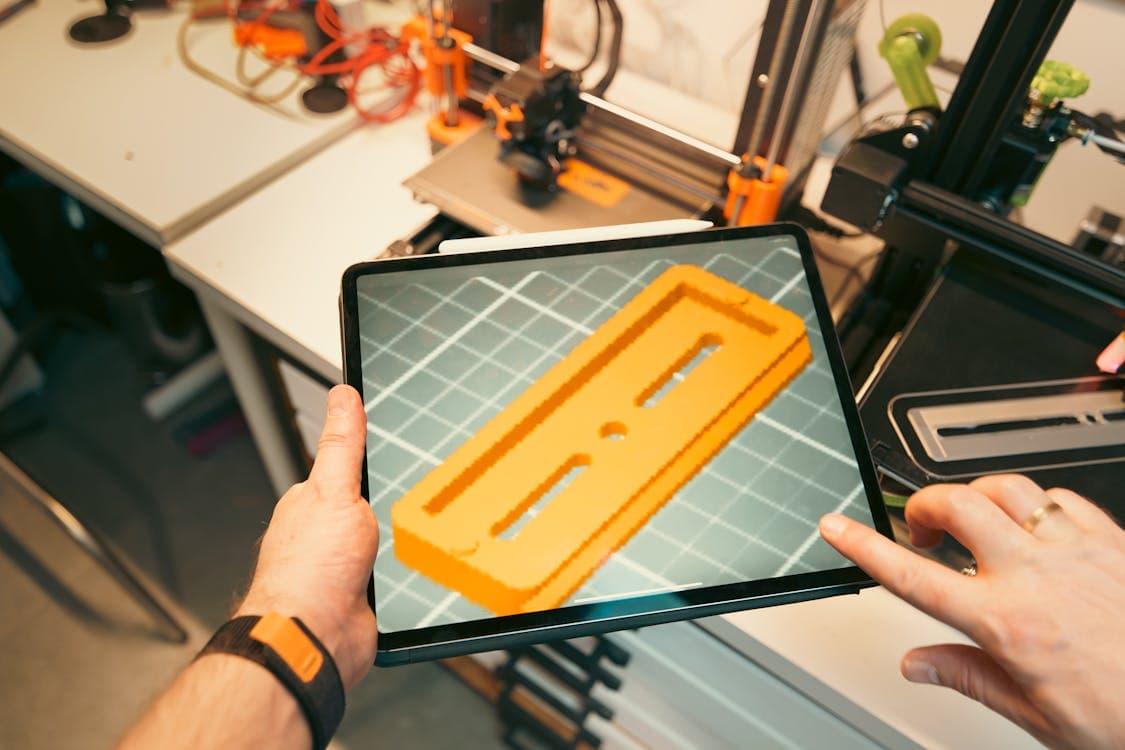
Photo: Jakub Zerdzicki via Pexels